Modbus Connect v0.7.0: Settings, Themes & Devices
The settings gear finally opens something. The interface has a light theme. And a device is now a thing you can look at, chart and log, rather than a label on a list of sessions.
What's New in v0.7.0
- A signed and notarized macOS release — a universal .dmg that runs natively on Apple Silicon and Intel, with no Gatekeeper workaround
- A settings panel, backed by per-user preferences that no longer travel inside your workspace file
- A light theme, remembered between sessions and applied before the window draws
- A Device View that charts, logs and configures across every session on one device
- Offline mode — prepare a full configuration with no hardware present, then connect on site
- Combined registers saved with the session, not stranded on a chart
macOS, Signed and Notarized
v0.7.0 is the first Modbus Connect release that is signed and notarized by Apple. Earlier macOS downloads were unsigned, which is why this site has spent months telling you to right-click your way past Gatekeeper. That instruction is now obsolete: the app opens like any other.
The .dmg is a universal build, so it runs natively on both Apple Silicon and Intel Macs.
The register format dropdowns have also been put right: they now look like the rest of the application, rather than falling back to the native grey macOS control.
A Settings Panel
The settings gear in the sidebar was previously a button that did nothing at all. It now opens a panel grouped into Workspace & startup, Data & logging, Appearance, Notifications & dialogs, and Defaults.
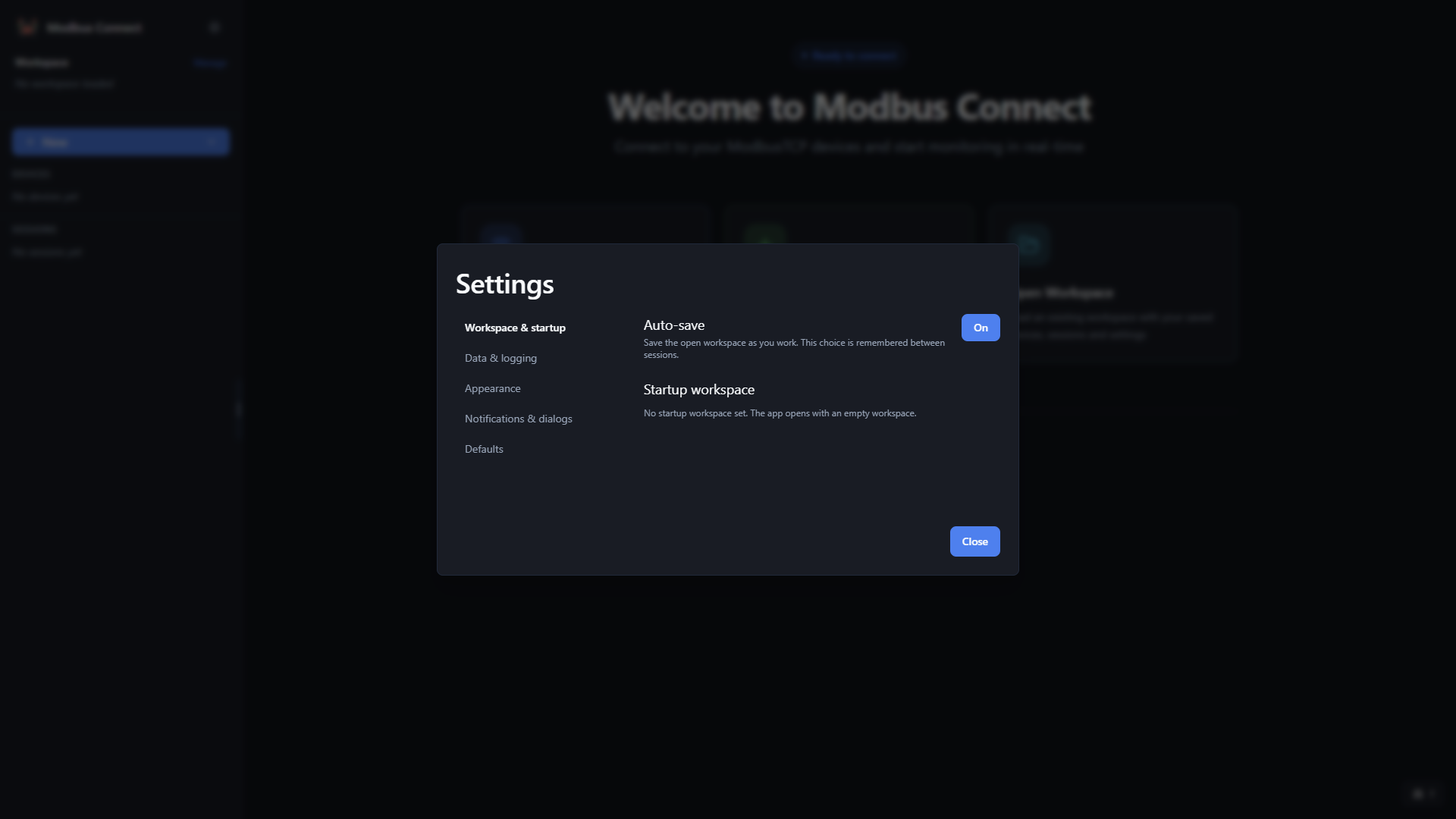
The more consequential change is behind it. Until now every preference either lived for as long as the window was open, or was written into the workspace file — which meant it travelled with the workspace rather than with you, so opening a colleague's workspace brought their preferences with it. Preferences are now stored separately and remembered between sessions.
Things you could set but never see
The startup workspace shows its current path and offers a Clear button — previously the only way to unset it was to clear your entire workspace. The log retention period, fixed at 30 days and shown nowhere, is now visible and editable.
Dismissed warnings can come back
Ticking "don't show this again" on the fast-scan warning used to be permanent — nothing in the app ever un-ticked it. Notifications & dialogs now reports how many warnings are hidden and offers a Reset.
Defaults worth having
The port and unit id new devices are added with, the polling interval a new session starts from, and a data logger's format, delimiter, rotation and log folder. That last one matters most: logs previously defaulted to the application's own working directory, which is not somewhere anybody chose.
One caveat: the log retention period is stored and editable, but the cleanup it governs has no button in the interface yet. The setting is ready for a Clean Up action when one is added.
Light and Dark Appearance
The interface now has a light theme as well as a dark one, chosen in Settings under Appearance. The light palette had shipped in the stylesheet from the start, but nothing in the app ever selected it — so the application was dark, and only dark.
Your choice is remembered between sessions, and the right palette is applied to the window before it draws, so opening the app does not flash the other theme first.
Charts follow the theme
Every colour Chart.js draws — axis titles, tick labels, the legend, tooltips and grid lines — now comes from the same palette as the rest of the window. A light chart is dark-on-light and readable, where before it was near-white on near-white. Grid lines are visible in dark mode too, which they were not.
Including the popped-out window
A popped-out chart is a separate window with its own document, so it is told whenever the theme changes while it is open — and one opened afterwards comes up already in the right palette.
Devices, Not Just Sessions
Sessions are no longer a flat list. The sidebar groups them under the device they belong to, and selecting a device opens a view of everything it is reading. A device is identified by ip:port:device_id, so two sessions reaching the same unit on different ports are correctly treated as different devices.
One table, one chart, one log
The Device View shows every register from all of the device's open sessions in one flat table. Two sessions polling the same address collapse to a single row, because a device register has one true value. Any register can be charted from the table, whichever session polls it.
Series keep their own cadence
A 100 ms register and a 1000 ms register on one chart are drawn at their real rates, never resampled or flattened to a common one. A register that has not been read yet draws a gap rather than a zero, and nothing is interpolated.
A three-state logging toggle
When only some of a device's sessions are logging, the toggle reads Mixed with the count, instead of misreporting as off. Clicking a mixed toggle turns the remaining sessions on rather than switching everything off, so one click never discards logging you already set up.
Changing identity is confirmed, not silent
Changing a device's IP, port or device id changes what it is. By default its sessions move with it and reconnect; one that cannot be reached is kept and marked disconnected rather than deleted, so nothing configured on it is lost.
Offline Mode
A complete configuration can now be prepared at a desk with no Modbus hardware present, saved, carried to site, and connected — with the desk work intact.
Creating a session offers an explicit choice before anything is attempted: Connect Now, or Prepare Offline. Preparing offline contacts nothing at all — no connection, no timeout, no delay.
Register maps survive a restart
Formats, byte order, scaling, offset and units are now persisted in the workspace file and restored on load. Previously they lived only in memory and were lost on restart, which made desk preparation pointless.
Resuming keeps the session's identity
Resuming reactivates a session in place instead of creating a new one under a fresh ID. Because formats and scaling are keyed by session ID, reconnecting on site previously reverted every register to UInt16 and discarded all scaling.
Combined Registers
Two polled registers can be combined into a first-class register, saved with the session rather than living only on a chart. Combine Registers sits under the Register Values header and joins two registers with +, -, * or /.
A combined register takes value conversion — scale factor, offset, units and formula — exactly like a real register. A missing operand, a division by zero or any non-finite result renders as a gap, never as 0 and never as a stale reading. Combined registers spanning two sessions on one device evaluate at the slower operand's cadence, so their operands always pair on a real cycle boundary.
How These Screenshots Get Taken
A smaller change, mostly of interest if you care how software gets documented: the application now photographs itself. npm run screenshots captures every view and dialog in one run, so the pictures on this site come from a fresh build rather than being taken by hand each release.
It starts the Modbus simulator itself and refuses to run if port 502 turns out to be held by something that is not the simulator — a screenshot taken against the wrong server looks exactly like a correct one. Register values are pinned before each run and read back, so the numbers on screen are the numbers the device actually held. Nothing destructive is ever confirmed: each confirmation dialog is photographed and then cancelled.
Notable Fixes
v0.7.0 carries a long list of fixes, most of them small. Two are worth dwelling on; the rest are grouped below, and the full list lives in the changelog.
A float keeps its precision through a formula
A 32-bit float register showed 0.000000 normally, but the moment a formula or a scale factor was applied it printed 0 or 1 — so a conversion silently changed what kind of number the register appeared to be. Floats now keep six decimals (twelve for 64-bit) whether or not a conversion is applied, in the table, the chart, the configuration dialog and the log file. A combined register follows the same rule, taking its precision from the registers it is built from.
A failing session no longer looks healthy
The sidebar showed a green dot for every session regardless of whether its reads were succeeding, and the Session View printed a read error directly underneath a green "Connected". Connection and health are two different facts and are now shown as two: a session that is connected but failing reads says so, the device it belongs to stays green because the device itself is still reachable, and a device row in the session list takes the health of its worst session.
The rest, briefly
- ✓
Auto-save off now survives a restart. It was held in memory only and switched back on at every launch, so a workspace you had deliberately stopped auto-saving would quietly begin saving itself again.
- ✓
Loading a workspace no longer stalls. It previously opened a TCP connection to every device up front, so a workspace with unreachable devices could hang for up to ~50 seconds on connect timeouts. Connections are now established lazily.
- ✓
32-bit formats no longer break a neighbour. A multi-register format consumes the address after it, and that address's reading was being withheld entirely, breaking any combined register built on it.
- ✓
"Save Workspace As" keeps everything. It no longer drops session labels and register configuration, and exporting no longer appends " (exported)" to every device name.
- ✓
Notifications and logger errors are readable on light. Both were drawn as a faint tint with near-white text — legible on the dark theme and effectively invisible on the light one.
- ✓
A format set from the Device View reaches every session. Where two sessions polled the same address, the format was written to only one of them, so the value and the dropdown flipped between the two settings about once a second.
- ✓
Charts say when they refuse a register. Selecting more than twelve used to drop the extras silently; the limit is now stated when you reach it.
- ✓
Browsing for a folder updates the folder shown. The Edit Logger chooser opened, accepted a folder, and left the old path in the form.
Download v0.7.0 Today
Modbus Connect v0.7.0 is available now as a free download for Windows and macOS.
Recommended for All Users
This release makes preferences yours rather than your workspace's, and makes a device something you can work with directly. We recommend all users upgrade to v0.7.0.
Download v0.7.0The Linux build for v0.7.0 is still on its way; the download page currently serves v0.6.0 for Linux.